

Quick answer: To segment contacts in a CRM, group them by shared attributes — location, job title, lifecycle stage, tags, or custom fields like lead score — so each group can receive messaging tailored to them instead of a generic blast. Start with manual tags for quick, one-off grouping (e.g., “Purchased – Product A”), then build dynamic segments from saved filters for lists that update automatically as new contacts match the criteria. In Nimble CRM, both Tags and Segments connect directly to Group Messaging, Workflows, and Stay in Touch reminders, so a segment becomes an action the moment it’s built.
Personalized outreach doesn’t start with a clever subject line — it starts with a well-built list. Before you can write a message that feels like it was written for one person, you need to know exactly who that person is, what they care about, and where they sit in their relationship with you. That’s what contact segmentation does: it turns a flat, undifferentiated database into a set of meaningful groups you can talk to differently.
Nimble CRM is a useful reference point here because it gives small businesses two complementary ways to build those groups: Tags, which are applied manually and stay fixed until you change them, and Segments, which are built from filters and update automatically as new contacts match the criteria. Nimble also ties both of these into Group Messaging, so once a segment or tag is built, you can act on it immediately — sending a targeted email, setting a follow-up task, or triggering a “Stay in Touch” reminder for the whole group at once.
Below are ten practical ways to segment contacts inside a CRM like Nimble, with an explanation of how each one works and what kind of outreach it’s best suited for. Once your segments are built, you can put them straight to work with an automated follow-up sequence for each group.
1. Location-Based Segmentation
Geography is one of the simplest and most reliable ways to personalize outreach, especially for businesses with regional events, local offers, or field sales teams. In Nimble, location is one of the searchable fields inside Segment Search, and it can be combined with other filters — for example, building a list of contacts on a specific social network who also live in a particular city.
How to build it: Use Segment Search and filter by City, State, or Country, then save it as a segment so any newly imported or enriched contact matching that location is added automatically.
Outreach use case: Invite everyone in a metro area to an in-person event, notify a region about a new local partner, or route leads to the right regional sales rep.
2. Birthday and Anniversary Segmentation
Few personalization tactics land as consistently well as remembering a date that matters to someone. Nimble’s “Stay in Touch” feature can flag contacts with an upcoming birthday, and that list can be pulled into a segment and sent a birthday message in bulk through Group Messaging — while still reading as personal to each recipient.
How to build it: Filter contacts by birthday month (or use the Stay in Touch reminders), save the segment, and set a recurring monthly task to check it.
Outreach use case: A “Happy Birthday” note with a small perk, a renewal-anniversary check-in, or a “you’ve been a customer for one year” message that reinforces loyalty.
3. Job Title and Seniority Segmentation
The same product or service means something different to a CEO than it does to a marketing coordinator. Because Nimble’s Quick Filters include Title as one of its core, most-used search fields, it’s easy to isolate contacts by role and adjust messaging tone and content accordingly — executives might get a strategic, ROI-focused note, while individual contributors get a more tactical, feature-focused one.
How to build it: Use the Title Quick Filter, optionally combined with keywords like “VP,” “Director,” or “Manager,” to separate seniority tiers.
Outreach use case: Send an executive-level case study to decision-makers and a hands-on product walkthrough to the people who’ll actually use the tool day to day.
4. Lead Type and Lead Status Segmentation
Nimble’s Lead Details section lets you classify contacts by Lead Type — “Investor,” “Partner,” or a custom category you create — and by where they sit in your pipeline. This is one of the most direct ways to make sure outreach matches intent: a cold lead needs education, a warm lead needs a nudge, and a partner lead needs a completely different conversation than a customer lead.
How to build it: Apply Lead Type and Lead Status fields to contacts (in-app or via CSV import), then build a segment for each type/status combination you want to message differently.
Outreach use case: A nurture sequence for new leads, a re-engagement email for stalled leads, and a distinct partnership-update newsletter for investor or partner contacts.
5. Social Platform and Social Engagement Segmentation
Because Nimble automatically enriches contact records with social profile data — Twitter/X, LinkedIn, Instagram, and more — you can segment based on which platforms a contact is active on, and even on engagement signals like follower count or whether they follow you back. This is especially useful for social selling, where the outreach channel matters as much as the message.
How to build it: Use the social-profile fields inside Segment Search (for example, “has a Twitter/X profile” or “follows you on LinkedIn”) to build platform-specific lists.
Outreach use case: Reach out to LinkedIn-active prospects with a connection request and a tailored message, while a separate list of Twitter/X-engaged contacts gets a reply to something they recently posted — outreach that feels native to where the relationship already lives.
Free Guide
The ABCs of CRM
A Beginner's Guide to Understanding &
Using a CRM
Download Free
You’re All Set!
DownloadGet the most out of this guide by starting your free 14-day trial of Nimble today.
6. Tag-Based Purchase or Interest Segmentation
Tags are the fastest way to group contacts around something specific and concrete, and one of the most common uses is labeling contacts by the product or service they purchased. Because tags can be applied on import (including via CSV) or added individually and in bulk, they’re well suited to building lists after a sale, a webinar signup, or a specific inquiry.
How to build it: Apply a tag such as “Purchased – Product A” or “Attended – Webinar Q3” either during import or from the Contacts tab in bulk, then use the tag itself (or “Any Tags”/”All Tags” filtering) as your segment.
Outreach use case: Upsell or cross-sell messaging tailored to what someone already bought, or a targeted follow-up to everyone who registered for a specific event but didn’t attend.
7. Lifecycle-Stage Segmentation
Not every contact is at the same point in their relationship with your business, and messaging that ignores that distinction tends to underperform. Lifecycle-based segmentation — grouping contacts as new lead, active prospect, current customer, or lapsed customer — ensures you’re never selling to someone who just bought, and never sending a beginner’s welcome sequence to a loyal, long-term customer.
How to build it: Combine Lead Status fields, tags (e.g., “Customer,” “Churned”), and custom fields to define each lifecycle stage as its own saved segment.
Outreach use case: A welcome series for new leads, a check-in and satisfaction survey for active customers, and a win-back offer specifically for lapsed customers.
8. Recency and Engagement-Based Segmentation
Nimble automatically tracks and surfaces contacts by recent activity — including “Recently Contacted,” which reflects the people your team has emailed or messaged via social channels most recently, and “Stay in Touch,” which flags relationships that are overdue for a check-in. These built-in views double as ready-made segments for engagement-based outreach.
How to build it: Use the “Recently Contacted” and “Stay in Touch” filters directly, or build a custom segment based on last-activity date if you want a more specific time window (e.g., no contact in 90+ days).
Outreach use case: A gentle re-engagement message to contacts who’ve gone quiet, or a “thanks for the great call” follow-up to everyone your team spoke with in the last week.
9. Education and Background Segmentation
For relationship-driven businesses — recruiters, financial advisors, consultants, alumni-network fundraising — shared background can be a powerful personalization hook. Education is one of Nimble’s eight core Quick Filter fields, meaning you can search and segment contacts by school, degree, or program without building a custom field from scratch.
How to build it: Use the Education Quick Filter to isolate contacts who share a school or program, then layer in location or industry if you want a more specific alumni-in-a-given-city list.
Outreach use case: An alumni-network outreach campaign, a referral request framed around a shared school connection, or a networking invite that opens with genuine common ground.
10. Custom Field and Behavioral Scoring Segmentation
Beyond the built-in fields, Nimble lets you create fully custom fields — lead score, customer lifecycle stage, purchase history value, or any attribute specific to your business — and segment on those just like any standard field. This is where segmentation becomes most sophisticated: instead of grouping by a single static attribute, you can combine several behavioral and demographic signals into one highly targeted list, then keep it updated automatically as contact records change.
How to build it: Create the custom field(s) you need under contact settings, populate them (manually, via CSV, or through an integration), and use Segment Search’s “Add Contact Filters” and “Grouping” tools to combine multiple custom fields — for example, “Lead Score > 70” AND “Last Purchase > 90 days ago” — into one saved segment.
Outreach use case: A high-priority outbound campaign aimed squarely at your best-scoring, highest-intent leads, or a “we miss you” campaign aimed at previously high-value customers who have gone quiet.
Putting Segments Into Action
Building the list is only half the job — the point of segmentation is what you do with it afterward. In Nimble, every one of the segments above can be turned directly into action from the Contacts tab:
- Group Messaging: Send a personalized bulk email to an entire segment at once, with tracking on opens and clicks, without losing the feel of a one-to-one message. As with any bulk send, keep messaging compliant with regulations like the CAN-SPAM Act.
- Stay in Touch reminders: Apply reminders in bulk so no relationship in a given segment goes stale.
- Bulk tagging and editing: Refine a segment further, or update fields across an entire group in one pass using inline editing.
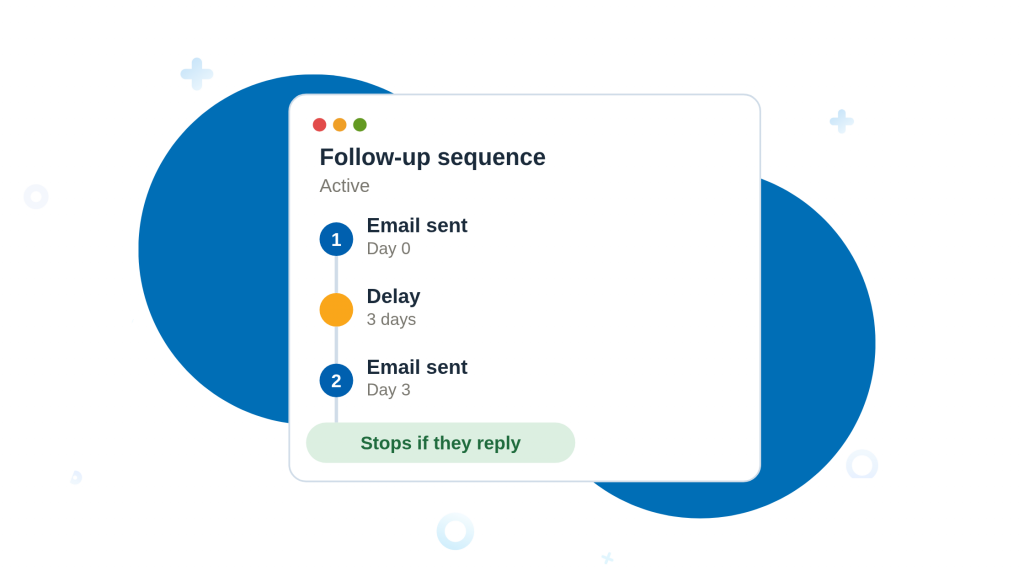
- Workflows: Add an entire segment into an automated follow-up sequence rather than manually enrolling contacts one at a time.
A Few Principles Worth Keeping in Mind
Start with tags, graduate to segments. Tags are the fastest way to get organized, especially right after an import — label contacts by product purchased, event attended, or referral source as soon as they enter the system. Segments are worth building once you want lists that stay current automatically, since new contacts matching the criteria are added without any extra work.
Combine filters instead of relying on one dimension. The most useful segments in practice aren’t single-attribute lists like “everyone in Chicago.” They’re layered: location and title, lead status and engagement recency, tag and custom field score. Nimble’s “Add Contact Filters” and “Grouping” tools exist specifically so you can stack these criteria rather than choosing just one.
Decide between “Any Tags” and “All Tags” deliberately. When filtering by multiple tags, “Any Tags” broadens your list (a contact needs to match just one), while “All Tags” narrows it (a contact must match every tag selected). Getting this setting wrong is one of the most common ways a segment ends up too broad or too narrow for the message you’re about to send.
Revisit segments on a schedule, not just when you need them. Static demographic segments (education, location) rarely go stale, but behavioral and lifecycle segments (lead score, recently contacted, engagement) can shift quickly. A monthly review of your saved segments keeps outreach aimed at the right people instead of a snapshot from three months ago.
Match the channel to the segment. A social-engagement segment built around Twitter/X or LinkedIn activity deserves outreach on that platform, not just an email. Group Messaging handles email well, but the segmentation data itself often tells you where the contact actually wants to be reached.
Closing Thought
The difference between a mass email and a personalized campaign usually isn’t the writing — it’s the list. A message about an executive-level ROI case study, sent to a list of VPs and Directors, will outperform the same message sent to your entire database every time, not because the copy changed, but because the audience was built correctly first. Whether you’re using Nimble’s Tags for a quick, manual grouping or its dynamic Segments for something that updates itself over time, the underlying discipline is the same: define who you’re talking to before you decide what to say, and let the CRM do the sorting so your outreach can do the persuading.
FAQ
Tags are applied manually and stay fixed until you change them, making them ideal for quick, one-off grouping. Segments are built from saved filters and update automatically as new contacts match the criteria, so the list stays current without extra work.
Start with tags right after an import — label contacts by product purchased, event attended, or referral source. Graduate to dynamic segments once you want lists that stay current automatically as new contacts come in.
“Any Tags” broadens a segment, since a contact only needs to match one of the selected tags. “All Tags” narrows it, requiring a contact to match every tag selected. Choosing the wrong one is a common reason a segment ends up too broad or too narrow.
Yes. The most useful segments layer several criteria together — like location and job title, or lead status and engagement recency — rather than relying on a single attribute. Broad single-dimension lists like “everyone in one city” are rarely specific enough for personalized outreach.
On a regular schedule, not just when needed. Static segments (education, location) rarely go stale, but behavioral and lifecycle segments (lead score, recent activity) can shift quickly — a monthly review keeps outreach aimed at the right people.